
 By
By 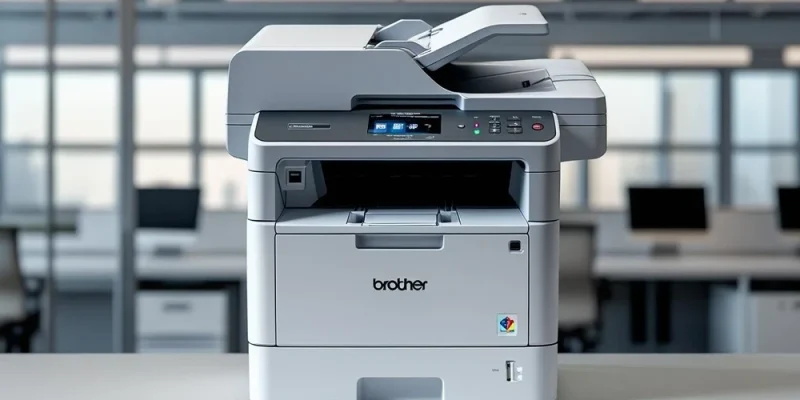
Brother offers wireless connectivity on most of its current HL, MFC, and DCP printers, but the setup process and the available features differ across models. The right manual is the fastest path from unboxing to a working print and scan setup that includes computers, phones, and tablets. This guide explains how to use Brother documentation to handle wireless setup confidently across the full range of models.
Confirming Your Model Supports Wireless
Not every Brother printer includes wireless. Older HL series single function lasers in particular shipped in both wired only and wireless versions, and the model suffix indicates which you have. An HL L2350DW has wireless, an HL L2350D does not. The full model number on the rear or bottom label is the key to confirming the feature set.
A complete archive of Brother printer manuals makes it simple to look up the wireless capability of your exact model and find the matching setup guide.
Initial Wireless Setup Methods
Brother wireless setup offers several paths. The simplest is WPS, where the user presses a button on the router and then the matching button on the printer. The router and printer negotiate the connection automatically. The manual lists the exact button on the printer and the typical wait time for the connection to complete.
For routers that do not support WPS or for users who prefer manual configuration, the manual walks through the control panel sequence to select a network, enter the password, and confirm the connection. Older Brother models may not have a touch screen, so the manual shows the navigation through the LCD with arrow buttons.
The Brother iPrint and Scan app and the Brother Mobile Connect app, available on iOS and Android, also handle wireless setup through a guided process. The manual covers app installation and the initial setup wizard.
Network tip: Brother manuals recommend placing the printer within thirty feet of the router for reliable wireless performance. Concrete walls, metal furniture, and microwave ovens all weaken WiFi signals between the printer and the router.
AirPrint and Mopria Setup
Apple AirPrint works on most current Brother wireless models without any additional setup. Once the printer is on the network, iPhones, iPads, and Macs see it automatically in the print dialog. The manual confirms whether your model supports AirPrint and lists any settings that need to be enabled.
Mopria Print Service handles printing from Android devices in a similar way. The manual explains which Brother models support Mopria and how to confirm the service is installed on the Android device.
Brother iPrint and Scan App
The Brother iPrint and Scan app provides direct printing, scanning, and copying through the phone or tablet. The manual covers app installation, printer discovery, and the available features. Most models support scan to phone, where the printer sends a scanned document directly to the connected mobile device.
The app also covers cloud printing through Brother Web Connect, which links the printer to services such as Google Drive, OneDrive, and Dropbox. The manual walks through service registration and the saved credential management.
WiFi Direct for Guest Printing
Brother wireless models often support WiFi Direct, which lets a phone connect directly to the printer without joining the home network. The feature is useful for guests who need to print without being given the household WiFi password. The manual covers WiFi Direct activation and the connection process from a phone.
Network Troubleshooting
When wireless connectivity fails, the Brother manual provides a structured troubleshooting sequence. The first step is to print the network configuration page from the printer itself, which shows the current IP address, the connection status, and any errors. The manual interprets each section of the report.
Common issues such as IP conflicts, signal strength problems, and router compatibility settings all get clear explanations. The manual also covers how to reset the network settings without affecting other printer configurations, which is sometimes necessary when moving to a new router.
Security Settings
Brother wireless manuals cover security features that matter for home and small office networks. WPA3 support on newer models, WPA2 on most models, and the option to disable web management for additional security all get clear coverage. The manual recommends changing the default administrator password during setup.
For business environments, the manual covers user authentication, secure function lock, and the audit log features available on supported MFC models.
Documentation for Older Wireless Brother Models
Brother has produced wireless printers for many years. Older models occasionally drop from the official site, but independent archives such as manualmachine.com keep documentation available for download. A wireless DCP from a previous decade or an older MFC still has its full setup guide accessible to anyone who needs it.
Final Thoughts
Brother wireless printer manuals turn what could be a frustrating setup into a smooth process. The right document explains the exact buttons, the exact menu paths, and the exact app steps for your model. Mobile printing, guest printing, and cloud printing become accessible, and the troubleshooting section gives you a documented path when something does not work the first time. Find your model in a documentation library, retrieve the matching guide, and keep it bookmarked.











Comments